Windows Powershell is a good component in the windows system. We can use powershell to call a remote system to execute a application without interfere the remote system. It is more secure and flexible.
How do connect a Remote PC using Powershell?
We need an IP, UserID and Password for the remote PC also install Powershell in local PC.
Start a Powershell with Administrator privileges option. Select a Powershell option in the windows and right click it. There is an option for Administrator privileges.
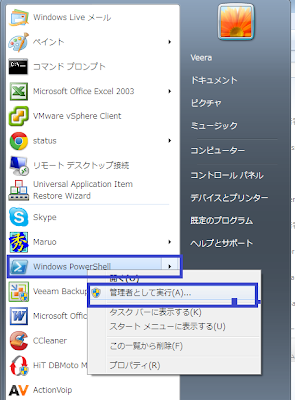
Type the following commands in the powershell prompt.
get-service winrm
Enable-PSRemoting -force
You need to add a trusted hosts(Remote Hosts) in the powershell.
winrm s winrm/config/client '@{TrustedHosts="192.168.0.49"}'
Here 192.168.0.49 is an IP address for remote host.
$s=new-PSSession -Computername 192.168.0.49 -Credential Administrator
Then windows system Login wizard appeared, it shows the Login ID and Password text boxes. Provide the correct credentials in the wizard.
Type the command
Enter-PSSession $s
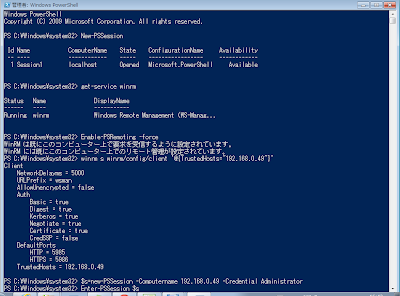
Now it shows remote login command prompt, you can change the directory, start /stop services and applications.
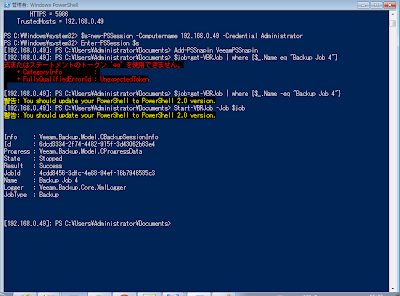
Here I start remote application job using the following commands.
Add-PSSnapin VeeamPSSnapin
$job=get-VBRJob | where {_.Name -eq "Backup Job 4"}
Start-VBRJob -Job $job
It start the job and return the results.
If you want to set the timeout for certain period.
Start-sleep 60
Here 60 is 60 seconds.
Sincerely,
Veera
Product Support Engineer,
Climb Inc,
http://www.climb.co.jp
Veeam Backup and Replication software for VMware ESX VM backup software. No.1 product in the virtual world.
http://www.veeam.com
